
On a lab PC, device servers are run by PLESTY Bench: it installs the
module, starts the server, keeps it running and keeps its log. A PC running it
is a bench; its window is the console, and its command line
plesty-server.
Install PLESTY Bench
Each release has an installer per platform on the Download page:
- Windows — run
plesty-server-<version>-windows-setup.exe. It needs no administrator rights. Windows may warn about an unknown publisher (the installer is not signed yet): More info, then Run anyway. - macOS and Linux —
sh install.shfrom the same release; or, with uv already installed,uv tool install "plesty-server[gui]".
Either puts PLESTY Bench in the Start menu or Launchpad. The window says in
its status bar when a newer release is out; update with Help ▸ Check for
updates…, or uv tool upgrade plesty-server from a terminal.
Install the module
Hub ▸ Browse… (Ctrl+K; Hub ▸ Marketplace… before PLESTY Bench 0.5) is
the hub inside the bench. Search, select
the module, choose a release from PyPI or its repository at a branch
or tag — the version lists offer every release and tag — and Install
module:
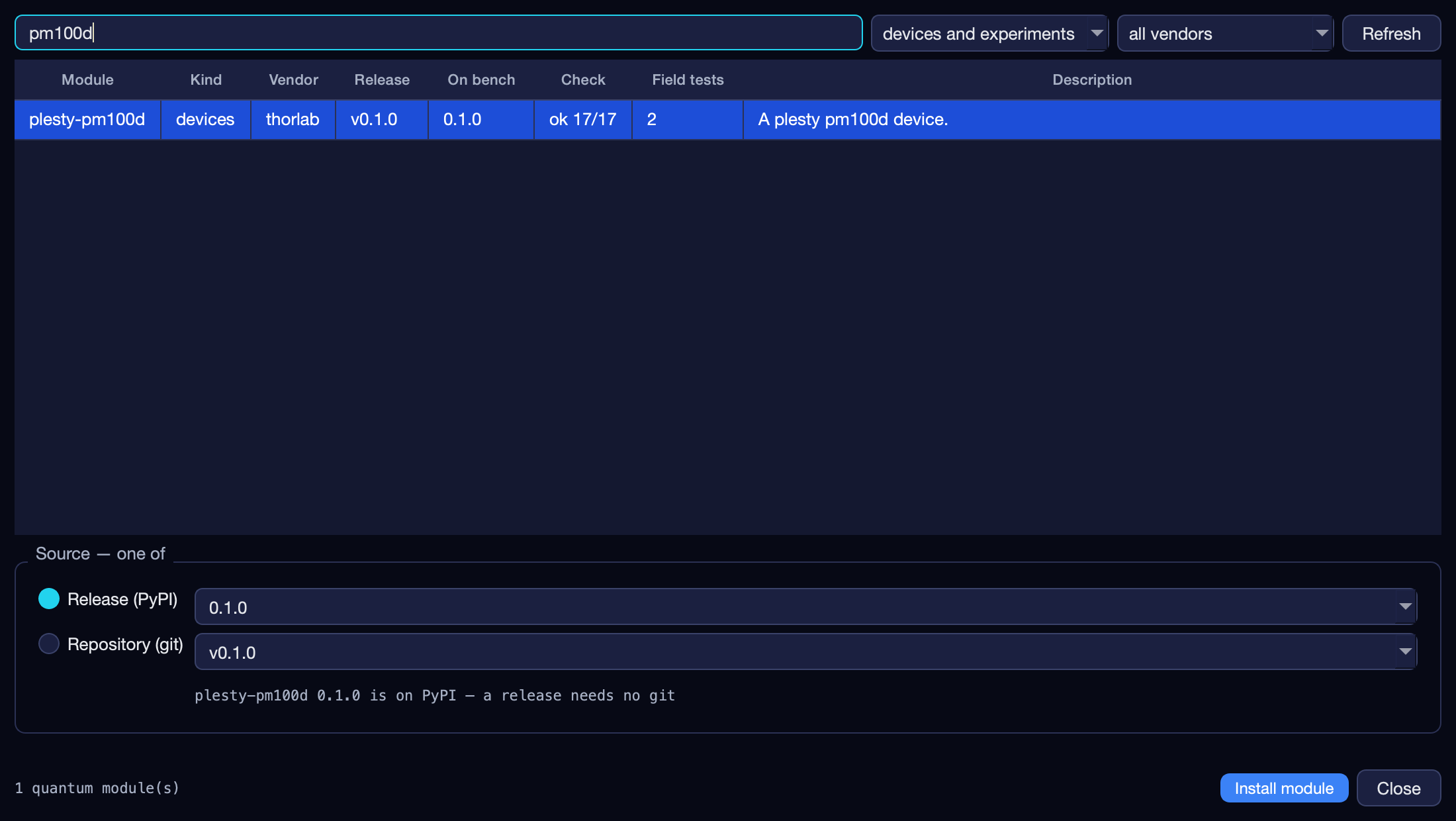
Installing stocks the bench; it does not start anything. A bench can hold one module and run it twice, for two instruments. Hub ▸ Installed modules… lists everything the bench holds, and uninstalls a module no device uses.
Add a device and start it
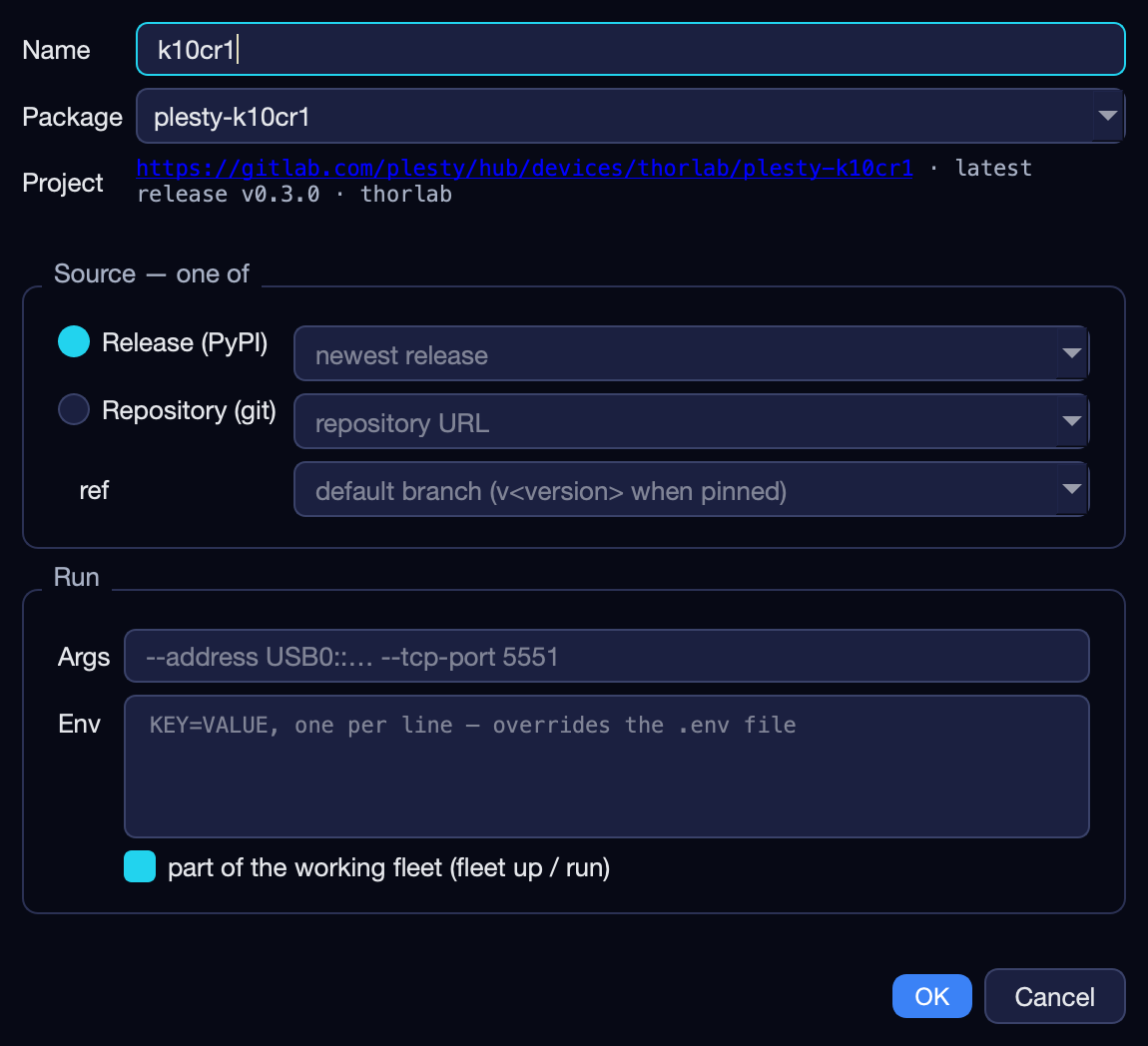
Device ▸ Add device… (Ctrl+N; in the Edit menu before PLESTY Bench 0.5)
declares an instance:
| Field | Decides |
|---|---|
| Name | the instance — it names its log, folder and process record, so it is unique on the bench |
| Package, Source | which installed module, from which release or ref |
| Args | what the server is started with — the instrument's address; --mock for the simulator |
| Env | environment for this server only |
You do not choose a port: the bench takes the lowest free one from 5551 and keeps it. Then select the device and Start:
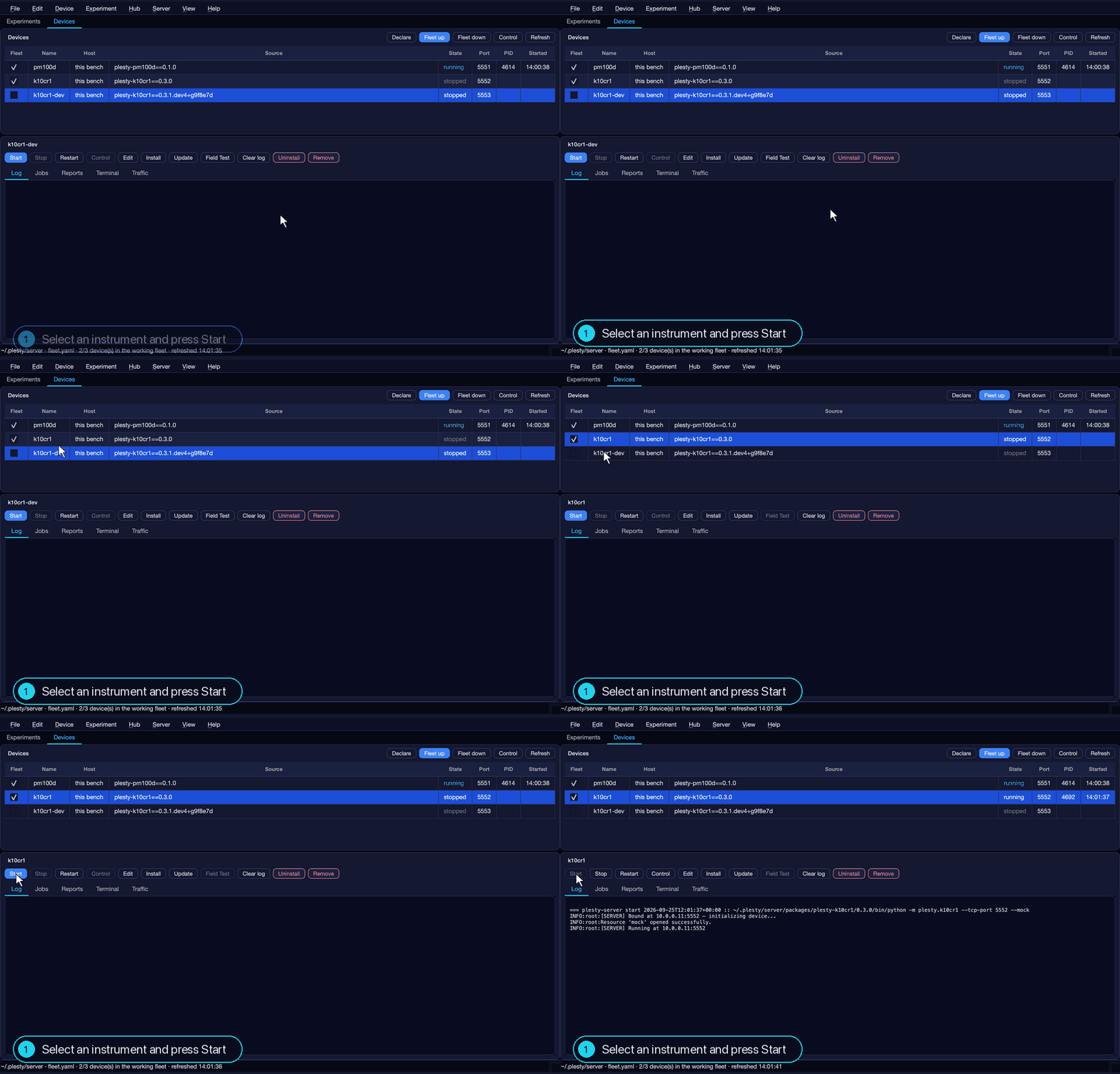
running means both that the process exists and that the server answered.
Drive it by hand
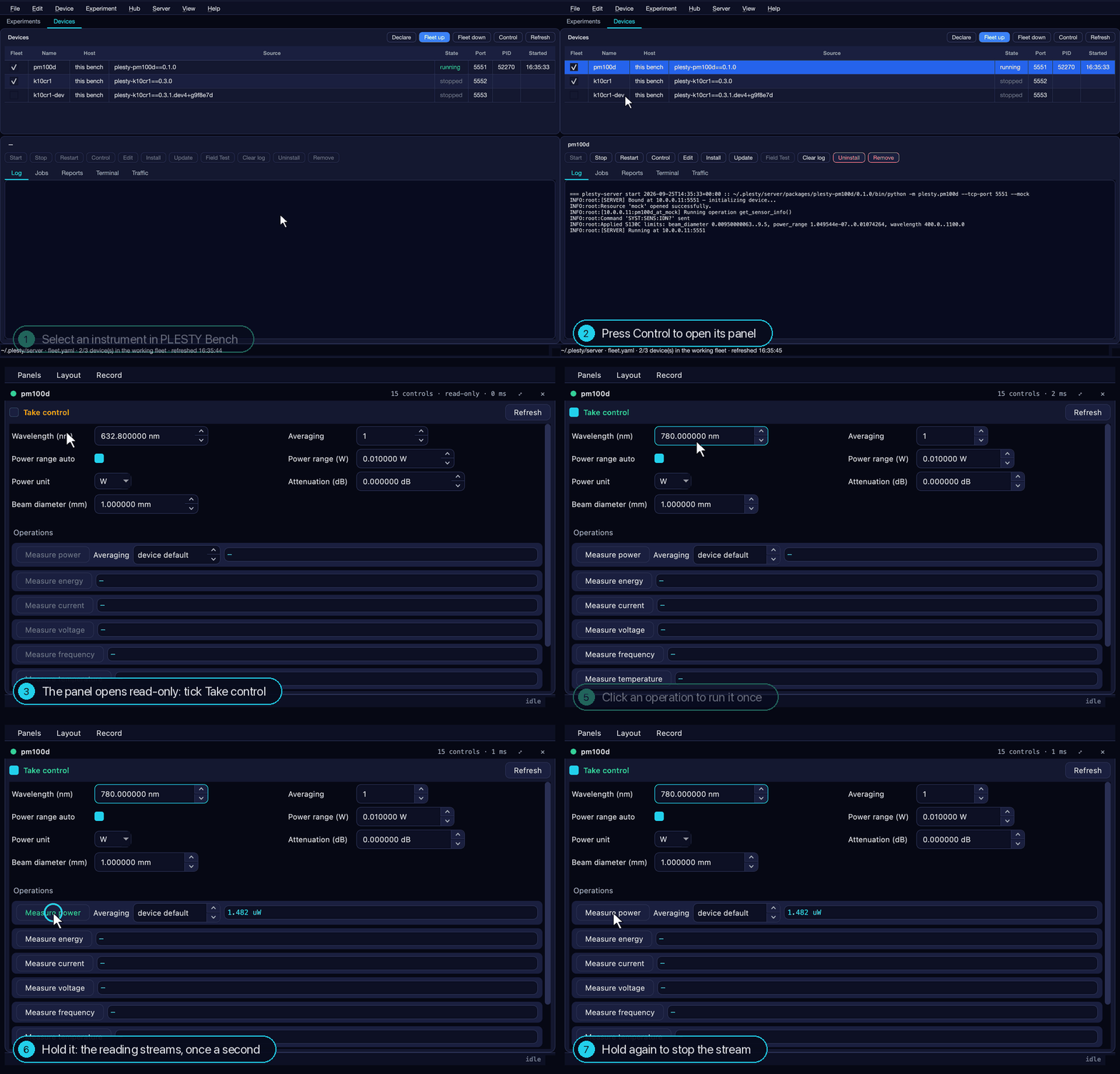
Control opens the device's panel — every setting and operation its module declares. It opens read-only; Take control to use it. A click runs an operation once; holding a reading repeats it every second until held again.
When something is wrong
The five panes under the buttons:
| Pane | Shows |
|---|---|
| Log | the server's own output — what it was asked, and any error |
| Jobs | installs, updates and field tests, with their output |
| Reports | the device's published field-test reports |
| Terminal | a command line in the device's own environment |
| Traffic | every request the server handled, who asked, how long it took |
A device that will not start is almost always answered by Log; an install
that failed, by Jobs. Edit (Ctrl+E) reopens the declaration, and its
.env tab holds what a real instrument needs — an address, a serial number.
Several instruments: a fleet
A fleet is a list of devices, written to one file the console edits for you (Edit ▸ Fleet file…). A bench can hold several — File ▸ New fleet… — and works on one at a time; Benches, Fleets & the Share shows how they fit together:
version: 1
devices:
  pm100d:
    package: plesty-pm100d
    version: 0.1.0
    args: [--mock]
    port: 5551
    autostart: true
  k10cr1:
    package: plesty-k10cr1
    version: 0.3.0
    args: [--mock]
    port: 5552
    autostart: true
autostart is the checkbox in the device table — the working fleet that
Fleet up starts together, so a bench comes back after a reboot without
anyone starting servers by hand.
The same, without the window
Everything above is also a command — what a bench started on boot, or over SSH, uses:
plesty-server declare pm100d plesty-pm100d --version 0.1.0 --arg --mock   # Add device
plesty-server start pm100d
plesty-server status                  # the device table
plesty-server log pm100d -n 20        # the Log pane
plesty-server fleet new lab-b         # File ▸ New fleet…
plesty-server fleet up                # start the working fleet
plesty-server fleet run               # bring it up and keep it up, with nobody logged in
Next: Field-Test It — the same module, against the real instrument.