
The pages before this one build an experiment you can start from a terminal. In a lab, the person running the measurement starts it from PLESTY Bench instead — the application on each lab PC that installs modules, runs device servers and runs measurements (see Interfaces). This page is what the bench does with your module, and what your module provides so it can.
What the bench needs from the module
Nothing beyond what plesty init experiment scaffolds (see Scaffold):
- A command line the bench can start:
python -m plesty.<module>with--config,--resume,--run-rootand--dry-run. config/*.yaml— the settings a run starts from. The bench lays them out as a form, a box per group, from what the module declares.setup.yaml— which instruments the experiment needs and which bench runs each. It is committed with the module and names variables, never values; the values are in the.envbeside it, which is never committed.
version: 1
benches:
  bench-local:                    # no address: the machine the experiment runs on
    data: ${LOCAL_DATA}           # where this machine sees the shared data disk
  spec-pc:
    data: ${SPEC_PC_DATA}         # where spec-pc sees the same disk
    address: ${SPEC_PC_ADDRESS}   # where spec-pc's agent listens
    token: ${SPEC_PC_TOKEN}
devices:
  hwp:
    package: plesty-k10cr1
    host_name: bench-local
  spec:
    package: plesty-lightfield-spectrometer
    host_name: spec-pc
A bench's agent is its network door, guarded by a token; the shared data disk is the one folder every bench can write to, each under its own path (see Large files never cross the network twice).
1. Install the module
Hub ▸ Browse… (Hub ▸ Marketplace… before PLESTY Bench 0.5), set the kind
to experiments, and install the module
from its Repository (git): an experiment's config/ files and
.env.example are in its repository, not in its release. A module you are
still editing is used where it is with Hub ▸ Load from….
2. Create a run
A run is one measurement, in a folder of its own. On the Experiments tab, Create:
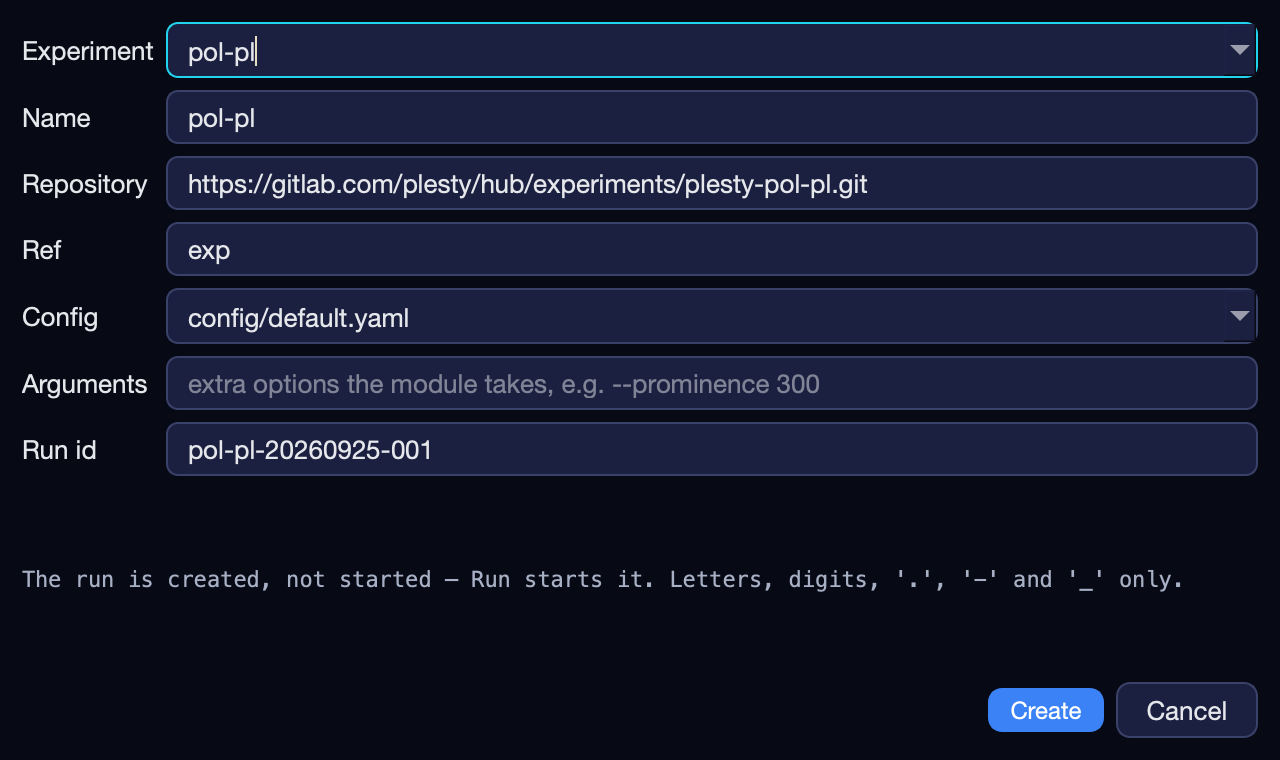
The configuration is copied into the run's folder, so nothing changed later for other runs affects this one. Create run also asks for the Operator (required) and a Note; both stay in the run's folder and show in the run table, and Experiment ▸ Add note… adds another later. Until a run starts, a double-click on its row renames it.
3. Configure it
Select the run and press Configure. Experiment Config is this run's settings, laid out from what the module declares — a unit beside every number, limits a field will not go past, the default in grey:
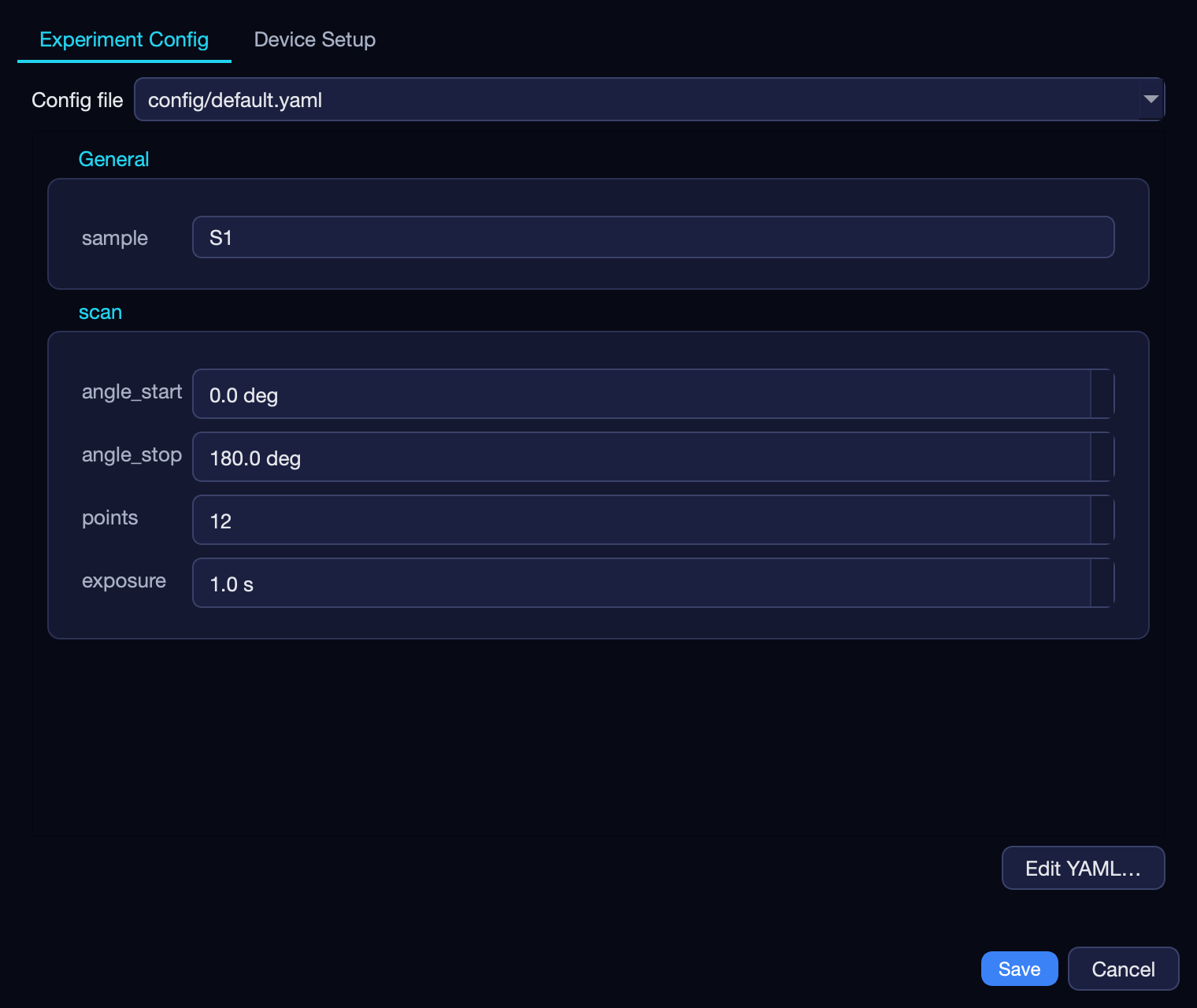
Device Setup is setup.yaml and its .env as a form: a row per bench
with its agent's address, token and where it sees the shared disk, and a group
per device with the bench that runs it.
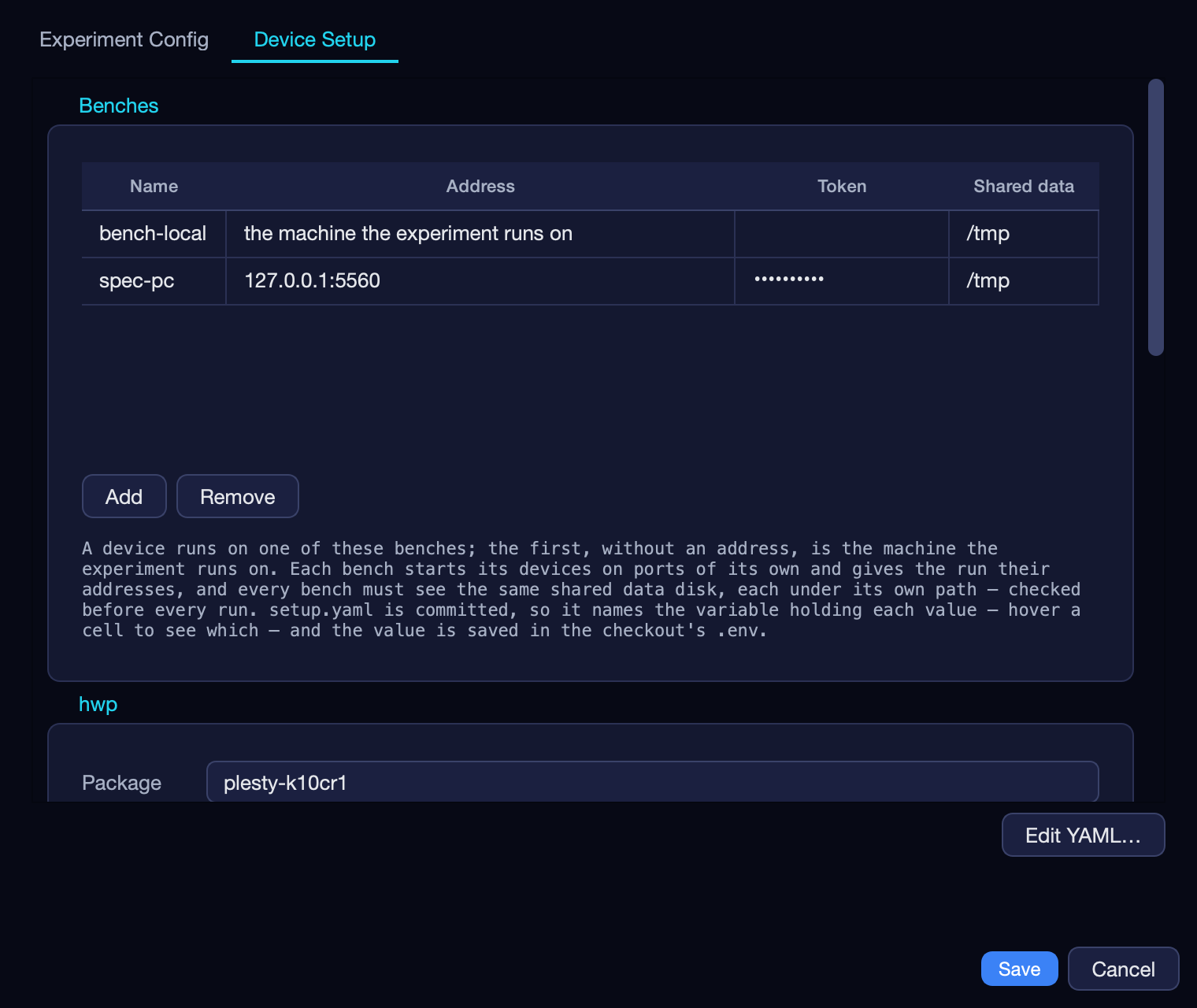
Save writes the values into the .env and only the variable names into
setup.yaml. It never changes the module's own files: a run's settings go to
that run, and settings saved with no run selected go to the bench's own copy,
which new runs start from.
4. Run it
Run does three things before the first step:
- Checks the shared disk — this bench writes a small file under its shared-data path, and every other bench reads it under its own. A bench that sees a different folder stops the run, by name.
- Starts each instrument on its bench — through that bench's agent, declaring the device there if it does not have it yet. A module that chooses its devices per run gets only those, and only their benches are checked (see Run Setup).
- Tells the run where this machine sees the disk (
PLESTY_DATA) and where each instrument listens (HWP_ADDRESS,SPEC_ADDRESS, …).
When the run ends, the instruments it started are stopped again, each on its
bench; one that was already running is left alone. A device address set by
hand in the .env points the run at that server, and the bench leaves the
device alone — the way to use a simulator or a server someone else runs.
The run is a job of its own: closing the window does not stop it. While it
runs, its row shows 5/12 steps and what the step in flight reported, and its
panes show the Log, the Data committed so far and the
Visualization. A banner across the top of the window names the run, its
steps and how many of its devices are up, whichever tab is in front.
Add report writes a note — a helium top-up, a
realignment — into the run's journal between the steps it happened between.
5. Pause, stop, abort, resume
| Button | Does | Then |
|---|---|---|
| Pause | Holds before the next step, instruments connected and where they are | Continue carries on at once |
| Stop | Lets the step in flight finish, then stops. Nothing is lost | Resume continues from the next step |
| Abort | Stops now; the instruments are released at once | Resume repeats the unfinished step |
All three act at a step boundary, because a step commits whole or not at all —
which is exactly the property the plan of atomic steps
gives. The bench asks by writing control.json into the run's folder, and the
run reads it between steps; resuming is the same --resume as from a
terminal (see Runs, data & resume).
6. The result
Everything a run produces is in its folder, on the shared disk — Open run
opens it. When the run ends, however it ends, it writes report.html there:
the run and its configuration, where each instrument ran, the operator's
notes, what each analyzer found, and the records — one file that opens in any
browser. Export HTML in the Report pane saves a copy anywhere. The run's
log is copied there too when its job ends, so the run reads the same on any
bench, even one that never ran it (see Benches, Fleets & the
Share).
Read next
- Across Two PCs — all of this, on a real experiment across two benches.
- Run an experiment in the PLESTY Bench documentation — every dialog and option in full.